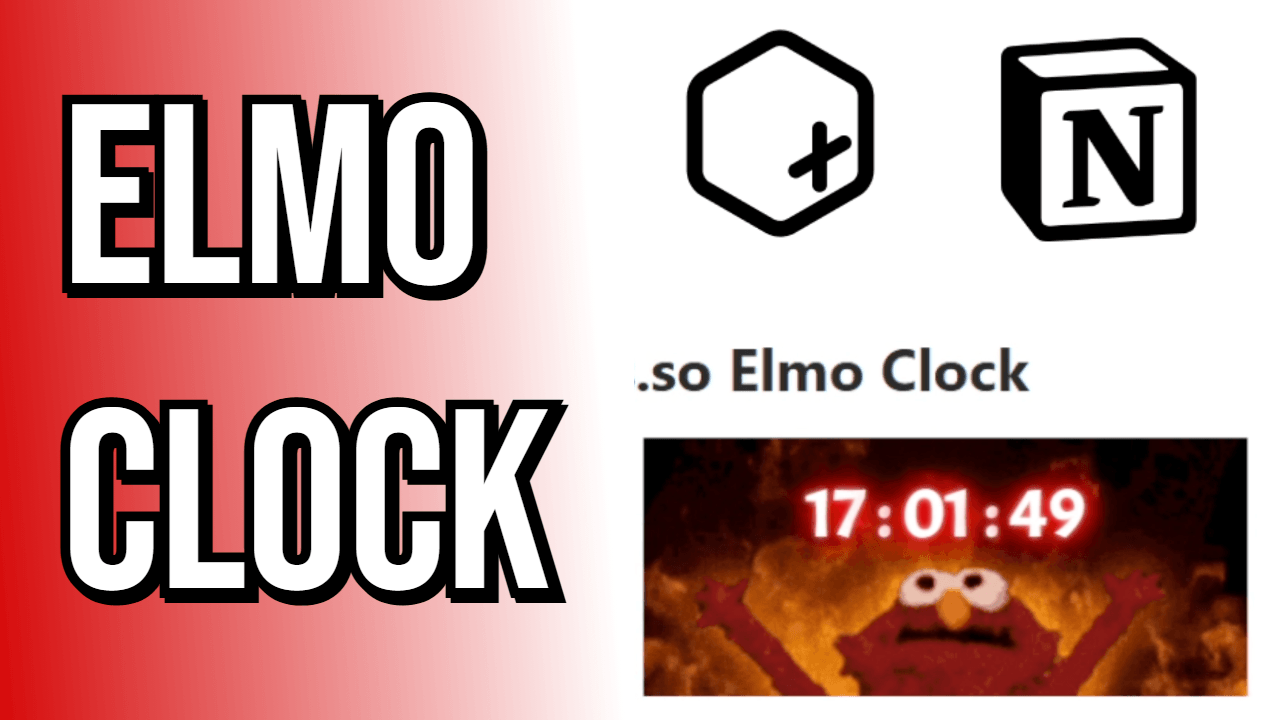
Notion widgets keep getting more creative, and this one pairs Sesame Street’s Elmo flame background with a glowing digital clock for a genuinely fun Notion clock widget. The idea started with Elmo’s iconic fire GIF, the one where his hands stretch upward and open up a gap right above his arms. That empty space turned out to be the perfect spot to drop a red neon time widget for notion, and the atmosphere matched surprisingly well since both the fire and the neon glow read as warm, bright colors on a dark background.
Step 1: Start a new widget on theplus.so
Go to theplus.so and click the button to create a new widget. This is one of the more flexible notion widget maker tools available since it lets you edit raw code directly instead of only offering fixed templates, which matters for a custom build like this one.
Step 2: Choose the Text widget type
Among the available widget types, select Text. This option exposes an editable code block rather than locking you into a single layout, so background, fonts, and colors can all be changed by hand.
Step 3: Set the background
The tool shows a plus code snippet meant for changing the background. Copy it into the textarea first, since everything else gets layered into this same code afterward.
Step 4: Add the Elmo GIF
Head to Tenor and search for Elmo’s flame GIF, the one where his arms open upward. Copy the direct image source link from Tenor and paste it into the correct field inside the background code, replacing whatever placeholder URL was there by default.
Step 5: Insert the digital clock code
Paste in the plus code for a digital clock widget notion setup. This is the part that actually turns the whole thing into a clock embed notion project rather than just a static image with a background.
Step 6: Adjust font and size
Open the “More options” section. Set the font to Acme, since it has a rounded, slightly playful look that suits Elmo’s design, and set the text size to 50 so the clock is legible without covering the GIF.
Step 7: Apply the neon theme
Switch the theme setting to Neon. This adds a glow effect around the digits, which is what makes this a proper digital clock notion widget rather than a plain flat number display.
Step 8: Set the color to red
Change the text color to #ff0000. Red pairs naturally with both the neon glow and Elmo’s orange and red flame background, and it keeps the whole thing looking cohesive instead of mismatched.
Step 9: Save and copy the embed code
Once everything looks right, save the widget and copy the generated embed link.
Step 10: Embed it into Notion
Open a Notion page, type /embed, paste the copied link, and resize the block to whatever dimensions fit the page layout.
That’s the whole build. A few variations are easy to try afterward: swapping the GIF for a different character, changing the clock color to green or blue for a different mood, or adding a date and time notion widget instead of a clock-only version by using a date and time widget notion code snippet from the same tool. Anyone comparing widgets for notion or looking for the best widgets for notion setups will find this kind of GIF-plus-clock combination is one of the simpler ways to make a notion clock widget feel personal instead of generic, and it works whether the goal is a clock widget notion free option or a slightly more polished paid template from theplus.so.