Heads up
Icon widget is no longer available. The standalone Icon widget is no longer part of thePlus.so. For a row of social links, a Text widget is usually better anyway: it shows any symbol or emoji, and it links any word or phrase to any URL, so one widget can carry every account you have. If you want the real brand marks, put them in an Image widget carousel and give each image its own link.
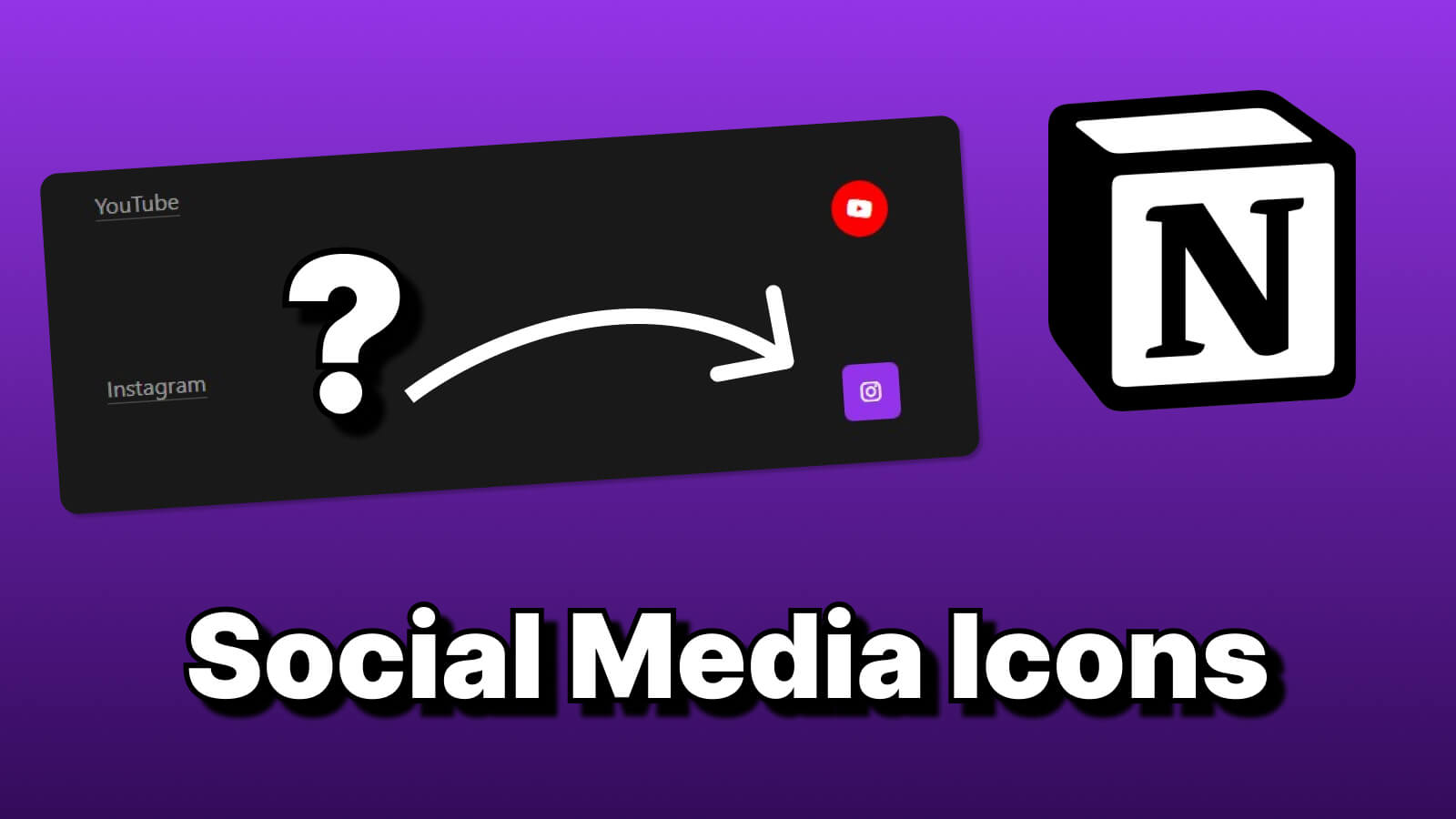
It’s pretty easy to add social media icons in Notion templates.
- Become a free member of NotionPlus.dev first.
- Then click the “Add Widget” button and select the “Icon” option.
- Then name your widget first.
- Then choose an icon.
- Type a link that will go when the icon is clicked.
- You can change the color of your icon if you want.
- Then you can create your widget by clicking the “Add Widget” button.
- You can add the embed link of the last widget to your Notion page.
Congratulations! You now have the capability to incorporate social media icons into your Notion templates! If this process appears complex, consider gaining a clearer understanding by watching the instructional video. Follow the steps outlined in the video to implement this feature.